Amazon Connect Arrange a Call Back from Queue?

Setting up options for Callers waiting in Queue for “the next available representative” often include offering a call back option. Generally, it is a best practice to not offer this option immediately but queue the caller for some time before offering this option. They have already called in and you have answered the call, so let them wait a few minutes before offering bail out options.

Common Call Flow Errors!

One of the most common errors in call center call flow planning is allowing a customer caller to queue for an Agent when no agents are logged in! The second biggest error, is leaving folks in the call back queue, at 5PM when all the agents log out and go home! So how do you do make sure this situation does not happen?

As it relates to the first issue, we always check to make sure that Agents are logged in BEFORE we queue a caller! This is a very simple step to do and it saves a lot of aggravation for callers who will never forget how long you left them rotting away in an empty queue!

Now as it relates to ‘call back’ without losing your place in queue, we have the same issue. Let’s assume that you offer callers this option. It is now 15 minutes before closing, what happens if all the agents log out before the call back is next in queue?

Call Back without losing your place?

In AWS Connect, Call Backs will follow the On-hours schedule. So if someone left a request for call back at closing time, that option will not trigger until the next day when the queue is open per On-hours. Lets see if we can improve this, but NOT offering that option late in the day!

We can setup a new schedule that only offers the call back between certain hours, so that if it is near closing, we do not offer the caller this option. This can be easily scripted in AWS Connect Contact Flows by adding a “check on-hours” step that eliminates this option when callers enter the queue and hour before closing time. This assures that Agents can log out at the appointed time and not leave anybody in queue!

AWS Connect is written around “contact flows” of different types. A “contact flow” handles inbound calls and routes them to Agents in queue. A “customer queue” contact flow deals with how to treat a caller while they are awaiting for the “next available representative”. You will learn this the hard way the first time you try to add a block to a contact flow and find that, though the block was there earlier, it is not there now! Why, the contact flow you are working on, does not support this type of block.

Free Call Back Script just for Asking

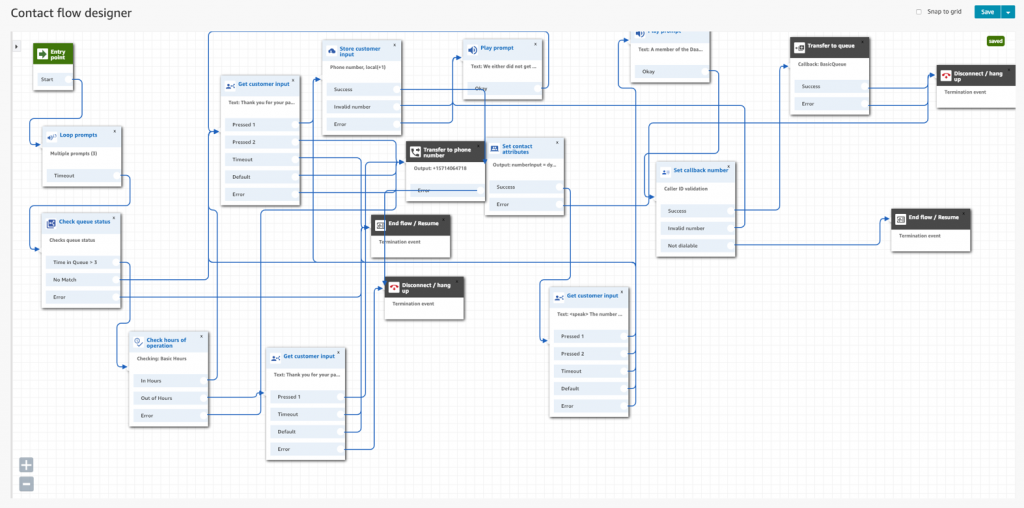
In this example we use a “Main Greeting” that is triggered by a call to the DNIS number associated with this path. We start the contact flow off by setting up all the variables like what voice to use, are we logging, what queue hold to use, which queue we are using etc. The flow goes on to check operating hours – routing ON- hours to the Queue and Off-hours to the Voice Message center.

If it is “On-hours” we send the call to the Queue flow. If an Agent is available, we connect them to the caller. If all agents are engaged with other callers, we queue the call. We play our “poor mans” Estimated wait time and then queue them with a “care message” followed by Music. 60 seconds later, we offer the option to continue to hold for an agent, or press 1 to receive a call back without losing your place in queue’.

Before we offer this option, we check another schedule that determines if we should offer the call back option. If the caller hits the center during the call back hours, the call proceeds as described above. If it is an hour before closing time, we do not offer the option.

So hit us up with a request and we will send you three “Quick Start” scripts that enable you to get this working as quickly as you can import the scripts into your AWS Connect call center instance.

Better yet – Give us a call and we will set this up for you!
Dextr a Customized Agent Dashboard for #Amazon Connect Call Center!

AWS Connect CCP

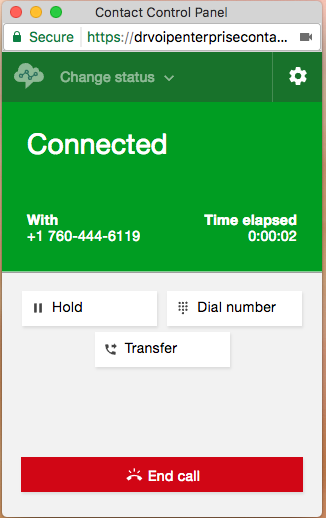
Building out call centers on AWS, you learn a lot about opportunities for productivity enhancements!   One of the first issues that we noted was that the standard Contact Control Panel or CCP, which is basically a WebRTC soft phone client, though very useful has many opportunities for improving the Agent experience.   The list of request features is growing and as a result, we have taken on the development of  a customizable AWS Connect Agent Dashboard!


Call DrVoIP for AWS Call Center migration assistance.

If your only introduction to AWS is Connect, their cloud based call center product, you have successfully created your first call center instance and you are now taking inbound phone calls!   It was remarkably easy and with no real ‘geek” training, most call center professionals were able to log in, setup an instance, organize a call flows, create agents and voice prompts, obtain a phone number an in a few hours, you were taking phone calls!  Wow!

AWS Demo API’s

Did you know that the Agent CCP is completely customizable?  AWS provides a number of API’s and Connect Streams that a software engineer can access toward the goal of building an Agent Dashboard with a set of features and tools that are unique to your call center environment.  There is even a site you can log into and test some of the available API’s.   If you go to http://connectdemo.com and click on the “demo sites” you can see some examples of customized CCP, Click to Call, Screen Pops and other tasty code bits.

Agent Streams

We note that there are many “connect streams” that a developer can tap to create their own version of CCP.   The supervisor side, however is not as fully formed and there are not as many streams and API’s available to support Supervisor requirements like real time queue and agent metrics.   In fact we had to develop our own socket layer communication strategy to implement the features we envisioned in our dashboard.

Recently we have discovered new and not readily available API for other AWS streams.  Some are only available depending on your support contract status.

Agent Dashboard Feature Set

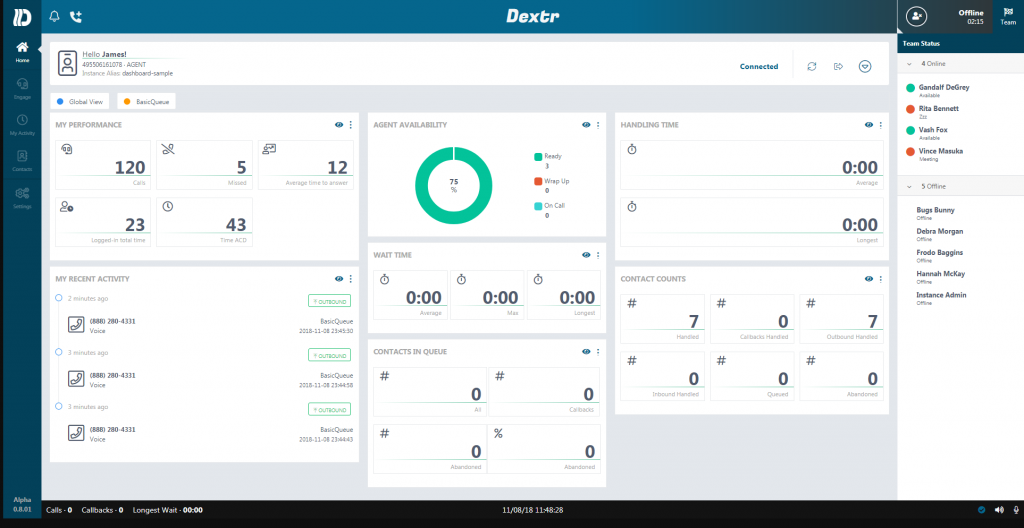
The list of functions and features that we have added to our CCP is still growing but we set a goal of making the dashboard painless!   For example there is nothing to install.  Our application needs to be added by your instance administrator as an application end point in the Connect dashboard.  Once that is complete, the user just points at our portal and enters their instance name (you can even upload your own logo).   The traditional AWS Connect CCP shows up and you login as normal.   Once your credentials are established, you are then presented with the revised Agent Dashboard as shown below.

AWS Connect Dextr Agent Dashboard feature set

Most folks have asked for a “team status” display.  As an Agent I want to see the status of the other agents on my team.  So the first attribute we added was just that, a team status display.    Each agent has their own Activity List showing all of their calls both inbound and outbound.   Next to each call is a link to hear the recording of that call. Supervisors can select all calls, but agents only see their own call recordings.

Each Agent has a personal contact list with contacts that they have entered for their own use.  This augments the “quick connects” that they system administrator had created.  Here is the feature list:

  • Nothing to install! Instant Access via https://go.dextr.com which has video instructions for on-boarding;
  • Customizable Logo and YourCompany custom log-in URL;
  • Role based Login (supervisor, agent, administrator)
  • SAML support;
  • Agent Team Status Display;
  • Agent to Agent Chat
  • Agent Call Activity with (click to return call);
  • Directory System with Click to call;
  • Help Button – Alert Supervisor;
  • Queue Monitor – including calls in queue, max waiting time; optional red, yellow tags)
  • Personal Recording; (permission option);
  • Supervisor Permissions add: Login/Logout (change agent state) Monitor, coach and Barge in;
  • All Recording search and play (see note 1 below);
  • Real Time Metric review Report Generation
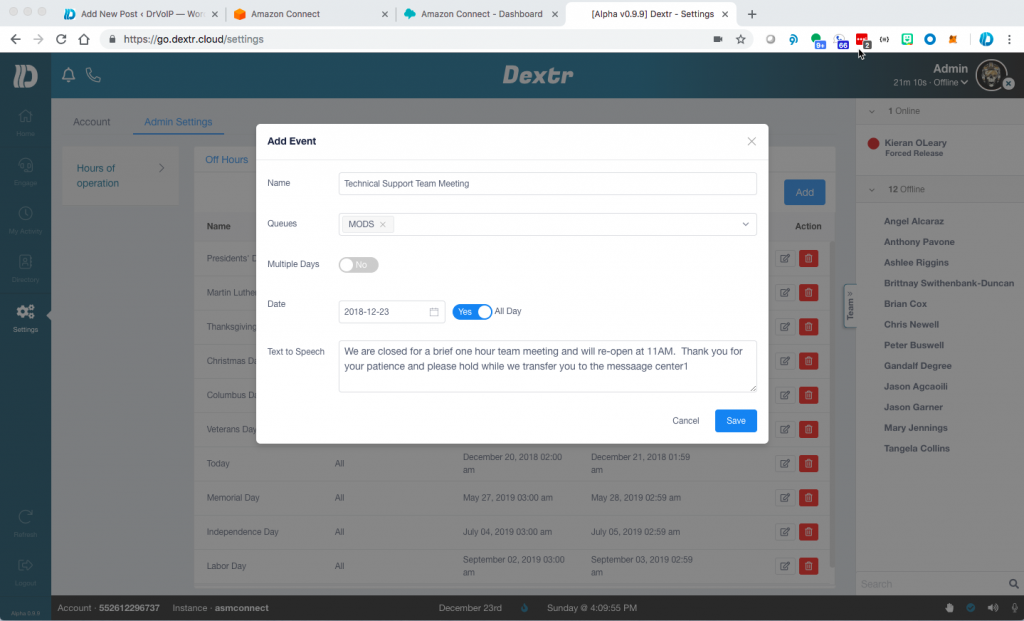
  • Ability to set Holiday Schedules and “ad hoc” closings with new close prompt (think team meeting).
  • Push Announcement String out to Agent Dashboard for alerts and other notices.
  • Omni-Channel SMS/MMS enables test and pics to the next available agent
  • Omni-Channel email routing to the next available agent
  • “no headset” audible alert options for softphone

We are also planning to integrate or Click2WebChat functionality as an advanced feature option.  This would bring website co-browsing, video chat, SMS and keyboard chat into the call center!  The Dextr screen shows the Agent interface including the Video and Chat links.

How do you set a Holiday Schedule in Amazon Connect?

Dextr enables a user with Admin privileges to open a window and create both HOLIDAYS AND AD HOC closings.   The instance is initially stocked with all US Federal holidays already listed.  The Admin can modify, add or delete these dates.  They can also specify, via the drop down window, which queues they are closing.  There is also a Text to Speech window in which the supervisor can enter the text of a prompt that will be played to a caller should they call during that time slot.

We named the dashboard Dextr!  There is nothing to install.  Follow the video instruction below and have your Amazon Connect Administrator add us as a trusted application, then head over to our portal, log in and put Dextr to work for your team!

If you have a requirement for the CCP we would also like to know more about your requirements, so let us know.   If  you do not have an AWS Connect instance, DrVoIP will build you a “proof of concept” portal for no charge!  Remember, the American Business Communications landscape will be littered with the bleaching bones of those companies that do not adopt Amazon Connect as the enterprise call center that manages customer engagements!